How to translate a video's audio while you watch
There are three ways to understand a video in another language. If the video offers an audio track in your language, switch to it: it sounds the most natural. If it only has captions, many video sites can translate them into text for you. If neither exists, or you would rather listen than read, a real-time translation extension such as YTVT (Your Voice Translated) translates the audio as it plays and speaks it in your language, with optional subtitles.
Three ways to translate a video
- Switch to a dubbed audio track
- Some videos come with audio tracks in other languages. If yours does, pick it in the player's settings. It is free and sounds natural, but only a small share of videos have one.
- Turn on auto-translated captions
- Many video sites can translate a video's captions into your language. You read rather than listen, and it only works when the video has captions.
- Use real-time audio translation
- A browser extension listens to the audio playing in the tab and translates it as it plays, as a voice-over, as subtitles or both. It also works for videos with no dub or captions, such as livestreams, lectures and podcasts, after a short delay.
What you need
- Desktop Chrome 116 or later, or Microsoft Edge 117 or later
- A YTVT account with a verified email address
- Translation minutes: 15 free minutes after email verification, or a paid plan
- An internet connection, because translation runs in the cloud
How to translate a video into English or another language with YTVT
Install YTVT from the Chrome Web Store or Microsoft Edge Add-ons, then pin its icon to the browser toolbar. Download
Click the YTVT icon and sign in or create an account, then verify your email address. The first time you translate, you are also asked to agree to real-time voice processing.
Open a page that plays video or audio and start playback.
Click the YTVT icon and choose a Target language. You can keep the suggested Translation model; each model supports a different set of languages. Languages
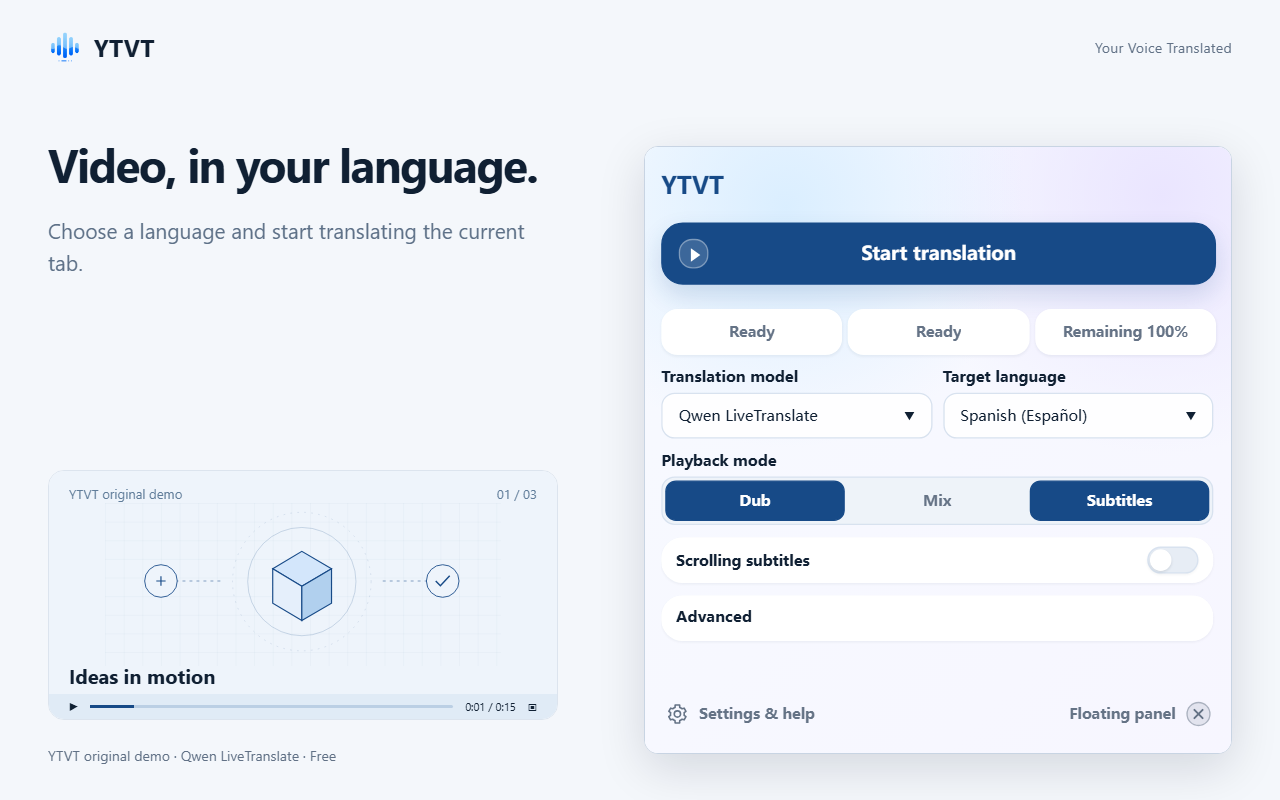
Choose a language and a playback mode, then click Start translation. Under Playback mode, choose Dub, Mix or Subtitles. The next section explains each one.
Click Start translation. The first translated words arrive after a short delay and then follow the speaker.
To follow the original and the translation together, turn on Scrolling subtitles and read along in the panel.
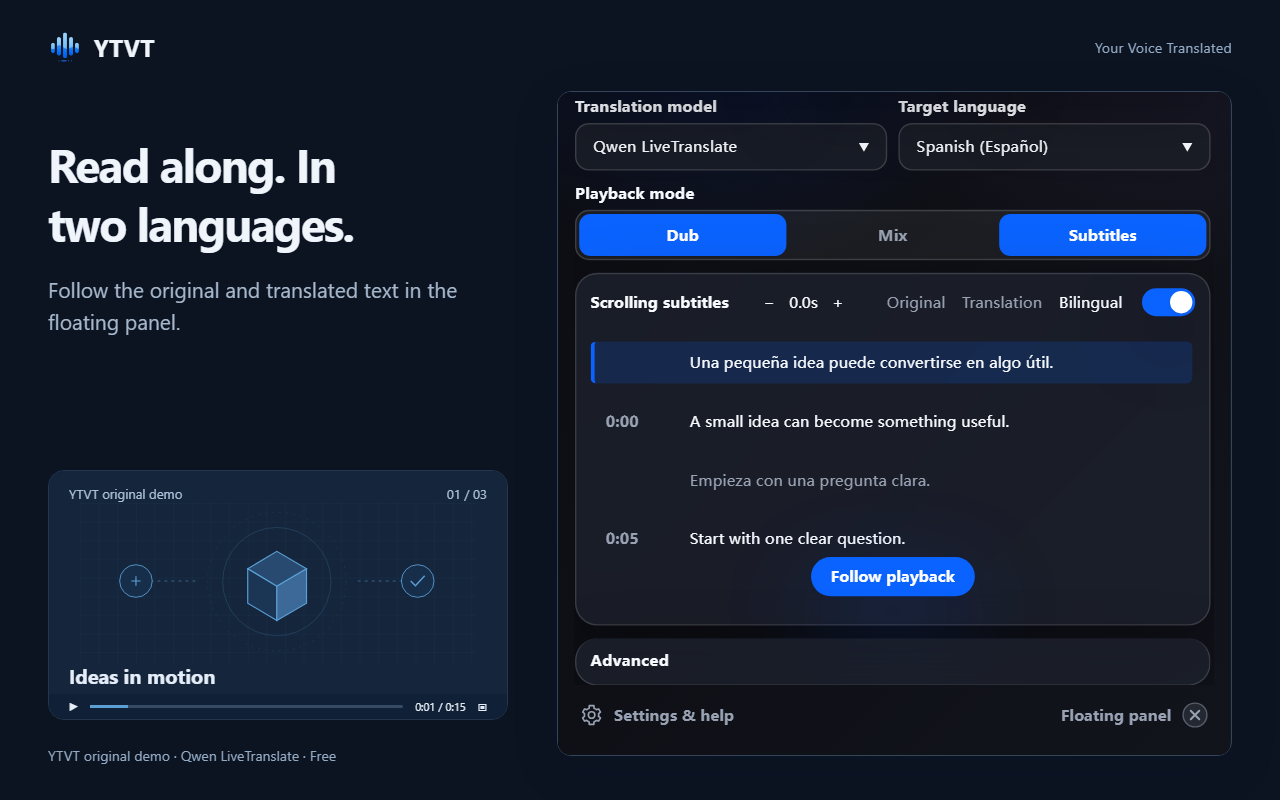
Scrolling subtitles show the original and the translation together. Open Advanced to change the subtitle size, weight and opacity, show the original line under the translation, or switch between light and dark.
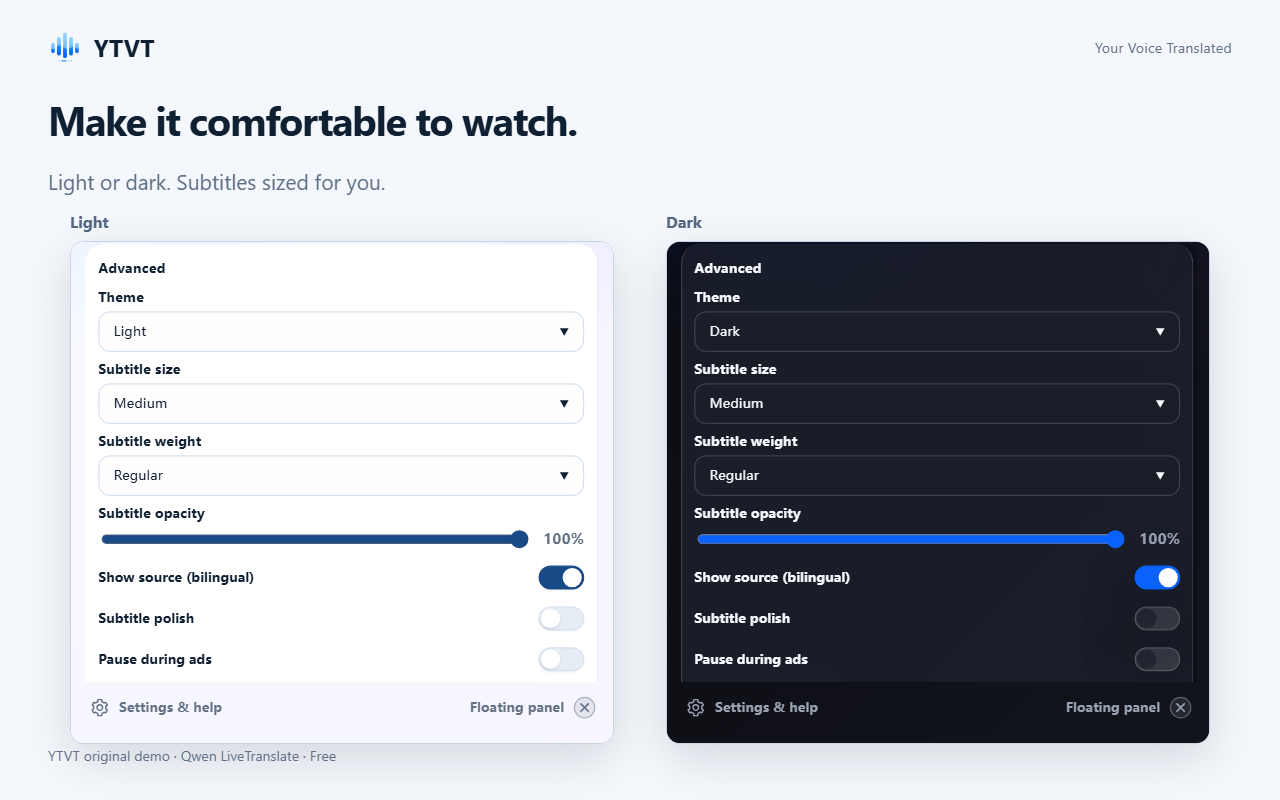
Adjust how subtitles look under Advanced. When you are done, click Stop translation. Leaving the video page also stops it.
Dub, Mix or Subtitles: which one to choose
Dub and Mix decide what you hear; Subtitles decides whether translated text appears. You can combine Subtitles with Dub or Mix.
- Dub
- You hear only the translated voice, and the original audio is muted. Best when you just want to listen.
- Mix
- The translated voice plays over the original, which stays quieter. Set how loud the original is with Original volume under Advanced. Useful when the speaker's tone or the background matters.
- Subtitles
- Translated text appears over the video. To keep the original sound and only read, click the highlighted Dub or Mix button again while Subtitles is on.
If translation doesn't work
- Translation does not start
- Check that you are signed in, that your email address is verified and that you have minutes left. The FAQ lists the other causes. FAQ
- Nothing is translated
- Make sure the video is playing and someone is speaking. Some sites and protected videos do not let extensions capture their audio.
- Your language is not in the list
- Each translation model supports different languages, and the models you can use depend on your plan. Try another model, or see which languages each one offers. Languages
- You ran out of minutes
- The 15 free minutes after email verification are a one-time allowance. Paid plans add minutes every period. Pricing
- The translation lags or cuts out
- A slow or unstable connection is the most common cause. Try again on a steadier connection or with another model.
What to expect
- Translation quality and delay depend on the audio, the language and your connection. Do not rely on it for legal, medical or safety decisions.
- Several people talking at once, loud music or heavy background noise make the translation less accurate.
- The extension runs in desktop Chrome and Edge, not on phones or tablets.
- The extension does not translate audio or video files you upload.
Related pages
Last updated 2026-10-22.